How to Create a WhatsApp Subscription in Finuro AdminA WhatsApp subscription is a paid product that gives your clients access to your WhatsApp advisory channel. This guide shows Finuro admin users how to create one, set up its plans and pricing, and connect the WhatsApp group subscribers join. Last updated: 12 November 2026 OverviewEach WhatsApp subscription has a title, a unique identifier, one or more pricing plans, a status, and an optional KYC requirement. You manage them at Monetization → WhatsApp in the left sidebar (admin.finuro.app/subscriptions/whatsapp). Before you start
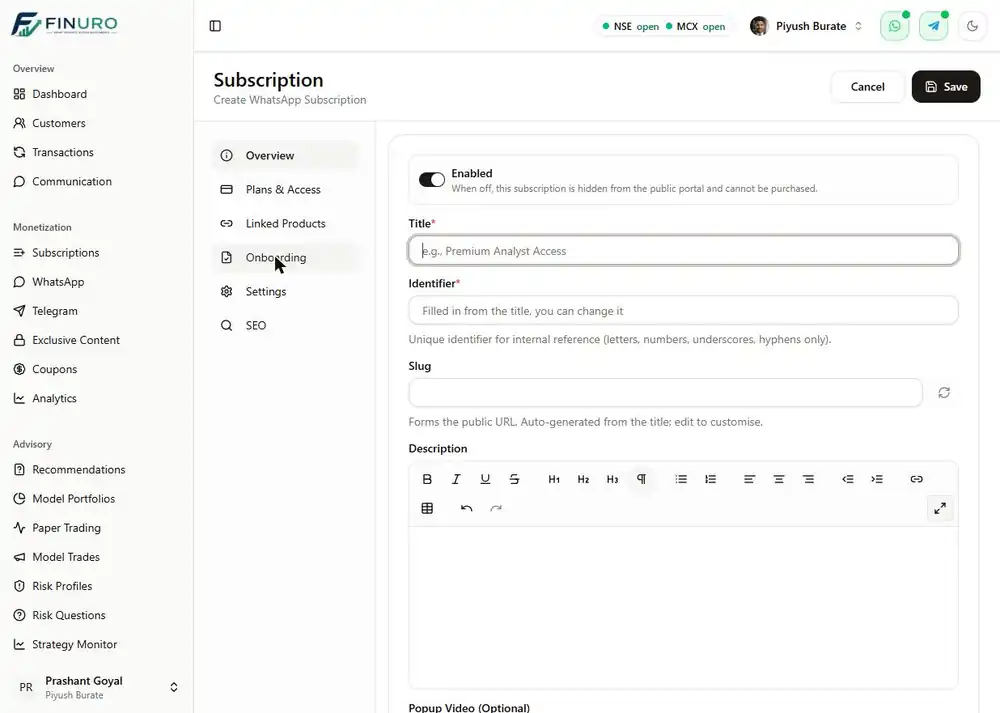
Step-by-step: create a WhatsApp subscriptionThe form has six tabs on the left. Only Overview and Plans & Access are needed for a working subscription; the rest are optional. Nothing is stored until you click Save at the top right. Step 1: Open the pageIn the sidebar, go to Monetization → WhatsApp, then click Add New (top right). 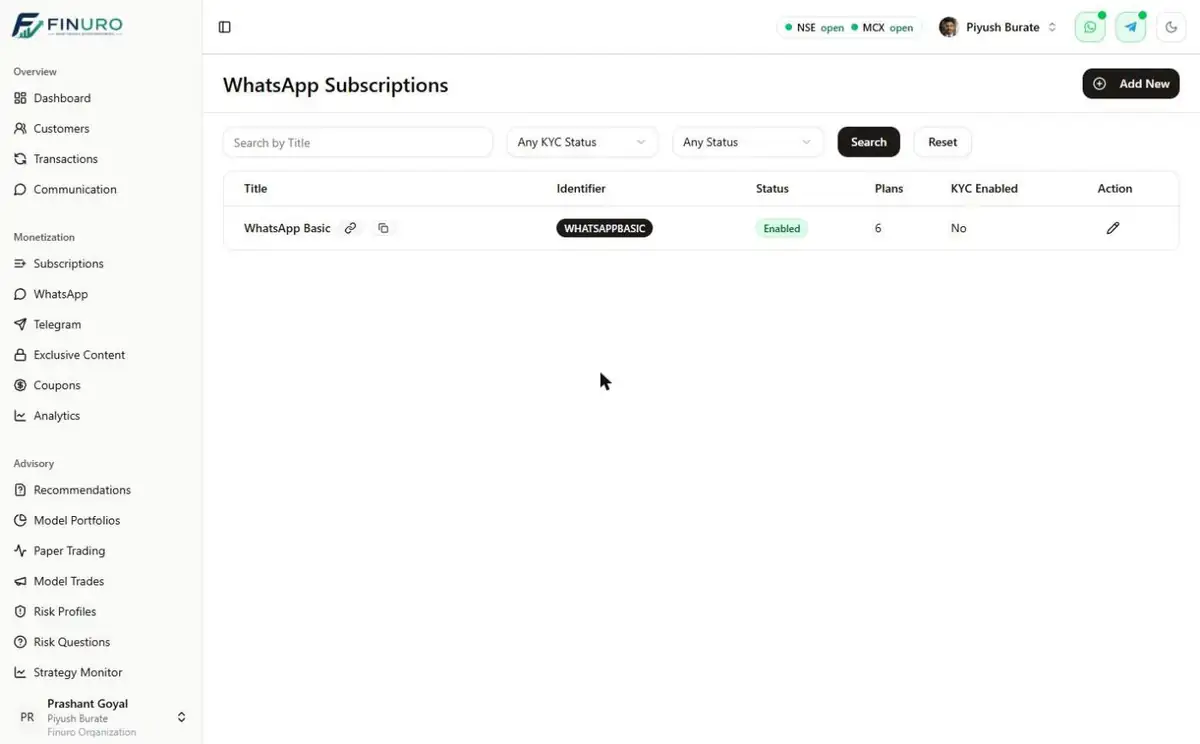 Step 2: Overview tab (basic details)
 Step 3: Plans & Access tab (pricing)
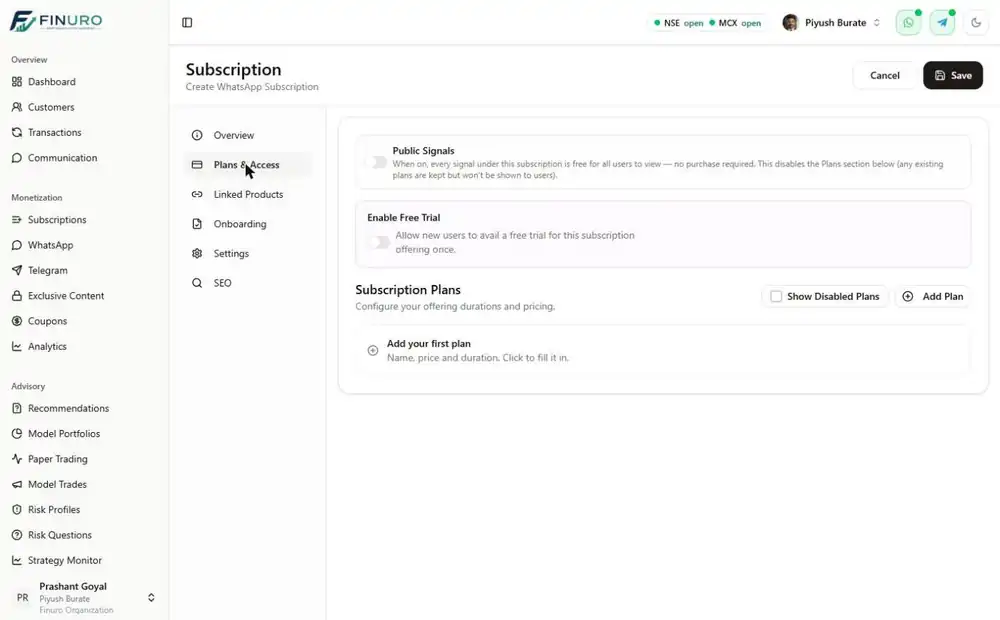
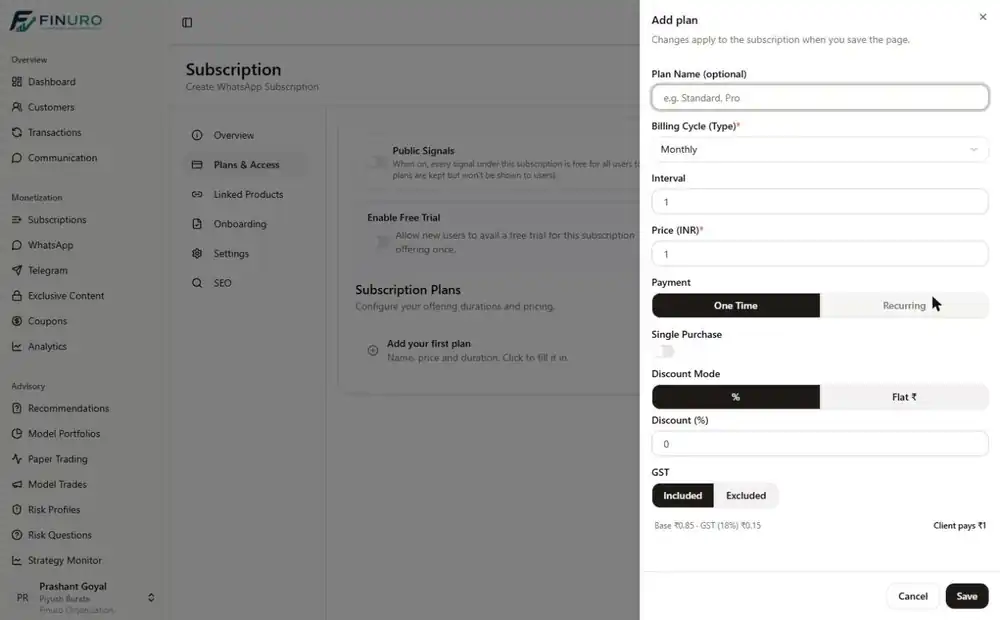 Step 4: Linked Products tab (optional)Click Add product to bundle courses or model portfolios free with a plan. Customers keep them while their paid subscription is active (not during a free trial); changes apply to new purchases only. 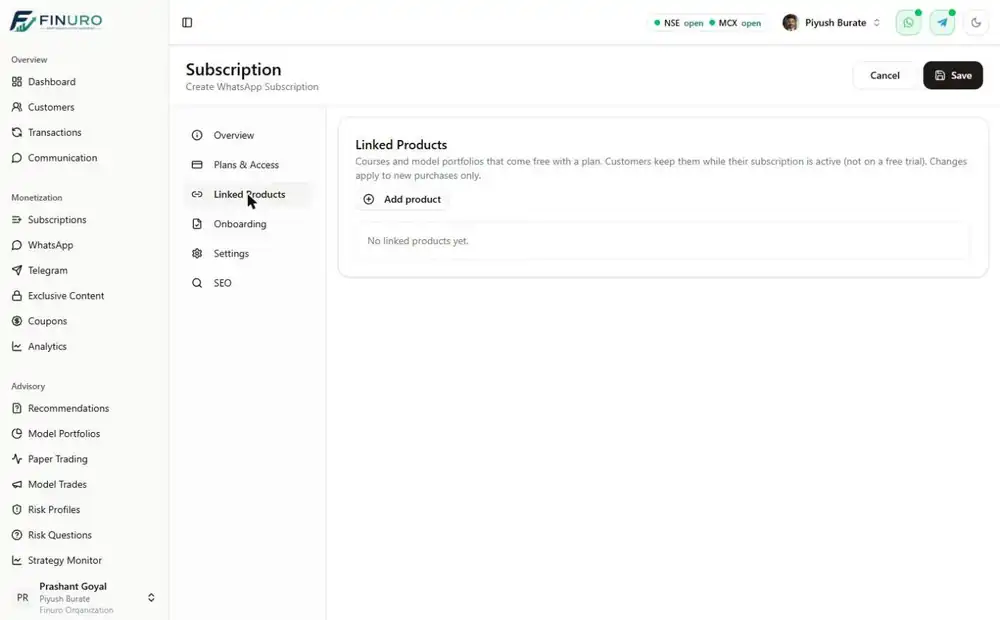 Step 5: Onboarding tab (optional)Drag the steps into the order customers should complete them, and toggle each on or off: KYC, MITC (eSign key terms), Risk Assessment, and Payment (always on). Keep Show Onboarding Dialog on to show the popup video and journey dialog first. 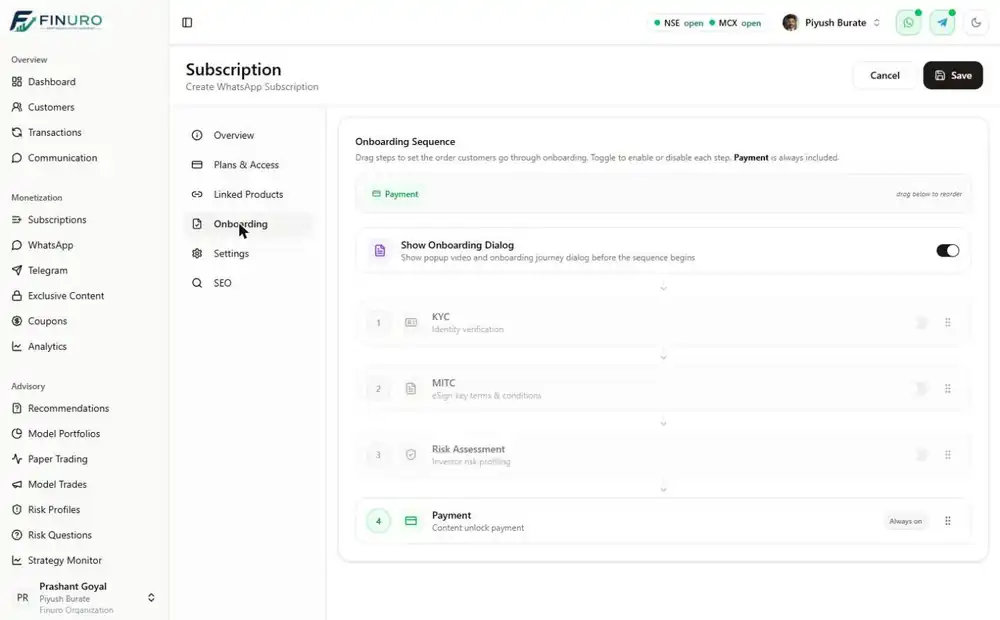 Step 6: Settings tab
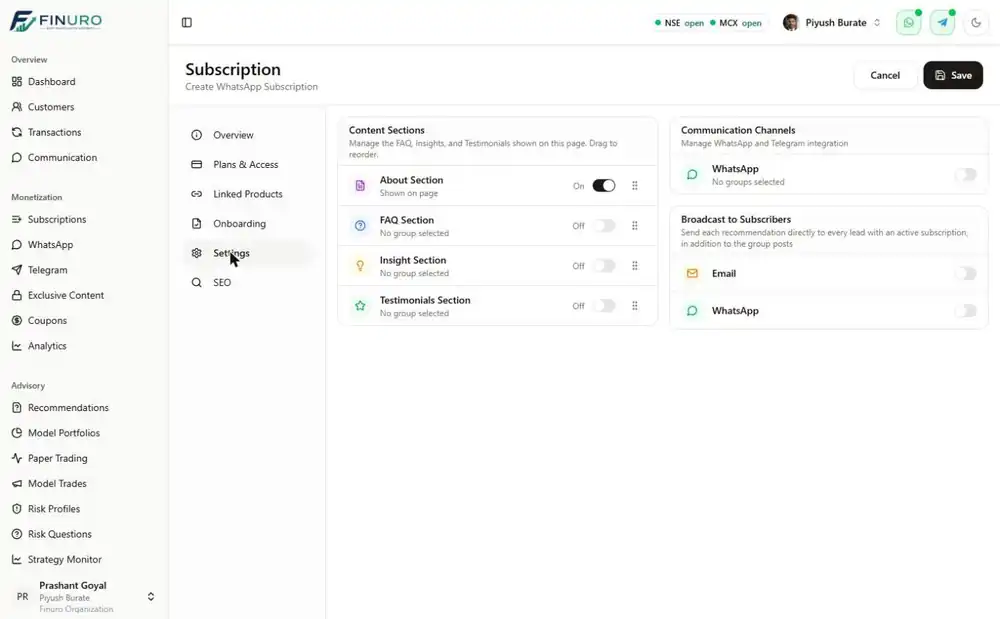 Step 7: SEO tab (optional)Set the meta title, description, OG image (1200×630), keywords and canonical URL. Blank fields fall back to the subscription's own title, description and URL. Turn on Hide from search engines (noindex) for private offerings. 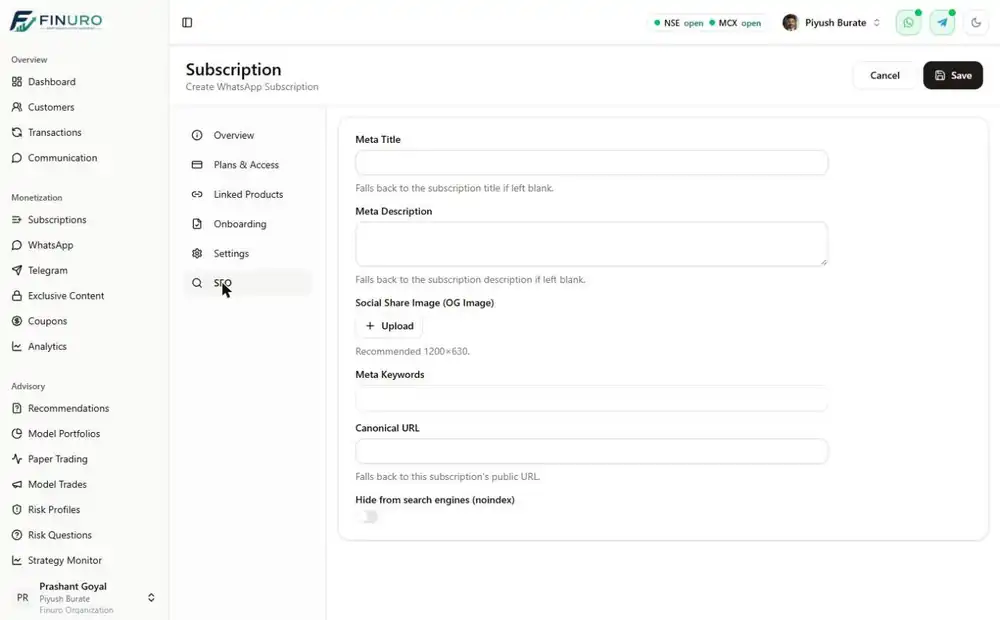 Step 8: SaveClick Save at the top right. The subscription appears in the WhatsApp Subscriptions list with its status and plan count. If a required field is empty, the form shows a red message (e.g. "Subscription Title is required") and nothing is saved. Field reference: Add plan panelThe plan panel opens from Plans & Access → Add Plan. Plan changes apply only when you save the whole subscription page. The panel footer previews the split, e.g. "Base ₹0.85 + GST (18%) ₹0.15, Client pays ₹1". Check it before saving the plan. Managing subscriptions and troubleshooting
|

Book a Demo
See how Finuro handles onboarding, recommendations, model portfolios, and billing for your advisory firm. Tell us a little about your practice and we'll walk you through the platform on a live call.